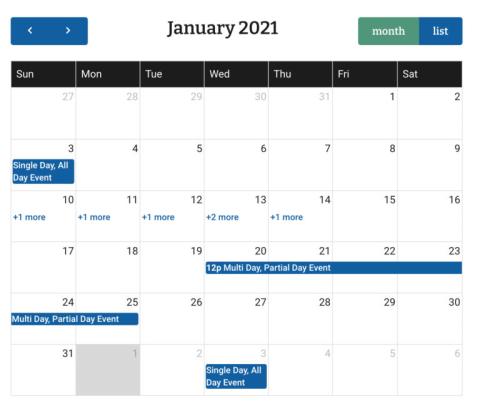
The Event content type allows you to manage events that are displayed on the Events Calendar of the News & Events section.
Adding a New Event
Once logged in, from the Drupal Admin toolbar navigated to Content > Add Content > Event.
Input the following fields:
- Title: This is the title of the event. It will appear in all layouts of the event calendar.
DATES ▼
- Start Date and Time (use AM/PM)
- End Time (use AM/PM)
- All Day: Select if the event will last the entire day.
- Duration
- Repeats
Body: This field may be used to provide additional event details.
Once you have filled out the above fields, make sure that the checkbox next to Published is selected, and click Save. Once published, the event will automatically populate the interactive calendar.
Editing an Event
- To edit an Event, click on Content in the Drupal toolbar.
- Filter by content type Event.
- Click to edit the Event.
- Once you have made your changes, make sure that the checkbox next to Published is selected, and click Save.
Editing a Recurring Event
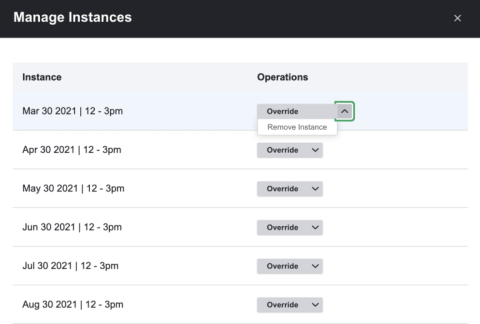
To remove one instance of a re-occurring event, click on the Manage Instances button, choose a specific event from the list, click Override from the dropdown menu, click Remove Instance, click Remove Instance when prompted by a popup modal, and republish the event. Should you wish to restore the event, it will remain available to revert in the future.
Once this is done, on the events page, once again make sure that the checkbox next to Published is selected, and click Save.