
The council portal allows users to log in to view and upload secure documents.
Adding and Deleting Documents
Once logged in to the council portal, users will have access to the Council Portal Document content type.
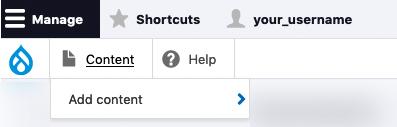
- To add a new document, hover over Content in the toolbar, and select Add Content:
Image
- Fill in the following fields:
- Title: The document’s title.
- Date
- Document Upload: Restricted document upload. The following file types are allowed: txt, doc, docx, pdf, xls, xlsx. One file only, with a maximum of 32 MB.
- Additional Information: Use this field to add any other information related to the document.
- Once you are happy with your content, click Save.
- To delete a document, navigate to the document page, click the Delete button and then confirm the deletion. Please note that this permanently removes the document from the portal.
Viewing Portal Documents
- When logged in, navigate to the main council portal page.
- Documents will be filtered by month, like so:
Image
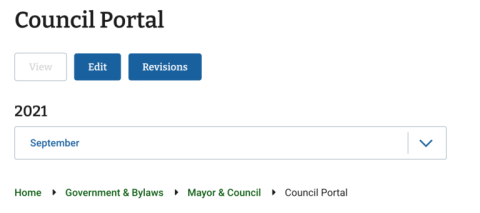
- You can then click on the month, which will display a list of documents for you to view.
Commenting on Documents
- When viewing portal documents, a comment option is available at the bottom of the page.
- Add the following fields and then click Save to post your comment:
- Subject
- Comment: This field is required.